For developers and agencies who already manage their site’s cookies and tags. Load the banner through your existing GTM container and send visitor choices to Google Consent Mode.
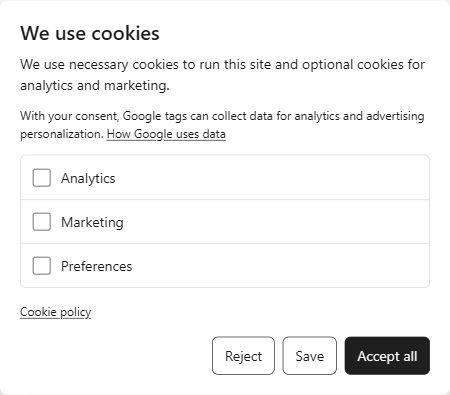
Actual ACookies banner with preferences open. English example.
Clear choices. Connected to your tags.
Choices that stay in the visitor’s handsAccept, reject or customize optional cookies. Choices are saved in the visitor’s browser, where they can reopen preferences to change or withdraw consent.
A banner that fits your siteConfigure languages and your cookie policy link. An optional HTTPS JSON configuration lets you supply wording, colors and a manually maintained cookie list.
Native Consent Mode updatesStart with denied optional storage and update Google Consent Mode through GTM’s native consent APIs when visitors choose.
Set up in your GTM container.
First identify your site’s cookies and prepare an up-to-date cookie policy. With GTM already installed, import the template manually, configure your tags’ consent checks and verify the result.
Create an ACookies tag on Consent Initialization – All Pages. Under Banner installation, select Load the standalone ACookies banner through GTM.
03
Add your site details
Enter a unique site key, your HTTPS cookie policy URL, languages and a policy version. Optionally add a configuration URL for custom content and styles.
04
Configure your measurement tags
For basic mode, trigger tags on acookies_consent_update with appropriate consent checks, such as analytics_storage. Advanced Consent Mode can send cookieless requests while optional storage is denied.
05
Verify, then publish
Use Tag Assistant to check a new visit, Reject, Accept all, analytics-only choices, saved preferences and withdrawal. Publish your container after verification.
Choose the installation that fits your site.
ACookies for WordPress
Our main product for WordPress sites, with managed scanning, a cookie inventory, script rules, consent logs and WP Consent API integration. If you use GTM on WordPress, keep the plugin and use the template’s WordPress installation mode.
For developers and agencies with an existing GTM container. You maintain the cookie information, policy and tag consent checks yourself. The banner saves choices in the visitor’s browser and sends consent updates to GTM.
Identify and document cookies yourself, and update your policy when tags change. An optional JSON configuration can hold a cookie list you supply; it does not discover cookies or update the list automatically. Managed scanning and cookie inventories require the WordPress plugin.
Do I need WordPress?
No. The standalone option loads the banner through GTM on sites without WordPress. For WordPress sites, use the plugin and its native GTM bridge.
Can I customize the banner?
Yes. Set languages and your policy link in the tag. Use an optional HTTPS JSON configuration for wording, styles and cookie information; its host must allow CORS requests from your website.
Does GTM need to be installed already?
Yes. Your site must load your GTM container first. The ACookies template then loads the banner, so you do not need a separate banner embed.
Does this automatically block every script?
Configure your GTM tags to respect consent. Scripts outside GTM need separate controls, and GTM cannot block code that has already run. WordPress script rules remain a plugin feature.